Frequently Asked Questions
Does this cost any money?
No. Bible Reading Plan is completely free, and it will stay that way. There's no subscription, no in-app purchases, no ads, and you never need a credit card.
Why don't you have the NIV?
The NIV (New International Version) is owned by a publisher, and its license doesn't allow it to be built into a free app like this one. All 11 translations in Bible Reading Plan are free for anyone to share, which is why we can include them.
If you like the NIV, try the Berean Standard Bible (BSB) or the World English Bible (WEB). Both are written in clear, modern English. You can switch translations anytime with Change plan.
What's the longest time I can choose for my plan?
Up to 10 years (120 months).
When you set up your plan, pick 6, 12, 18, or 24 months, choose to finish by the end of the year, or tap Custom duration and enter any number of months from 1 to 120. The longer your plan, the shorter each day's reading. A 10-year plan is about 9 verses a day.
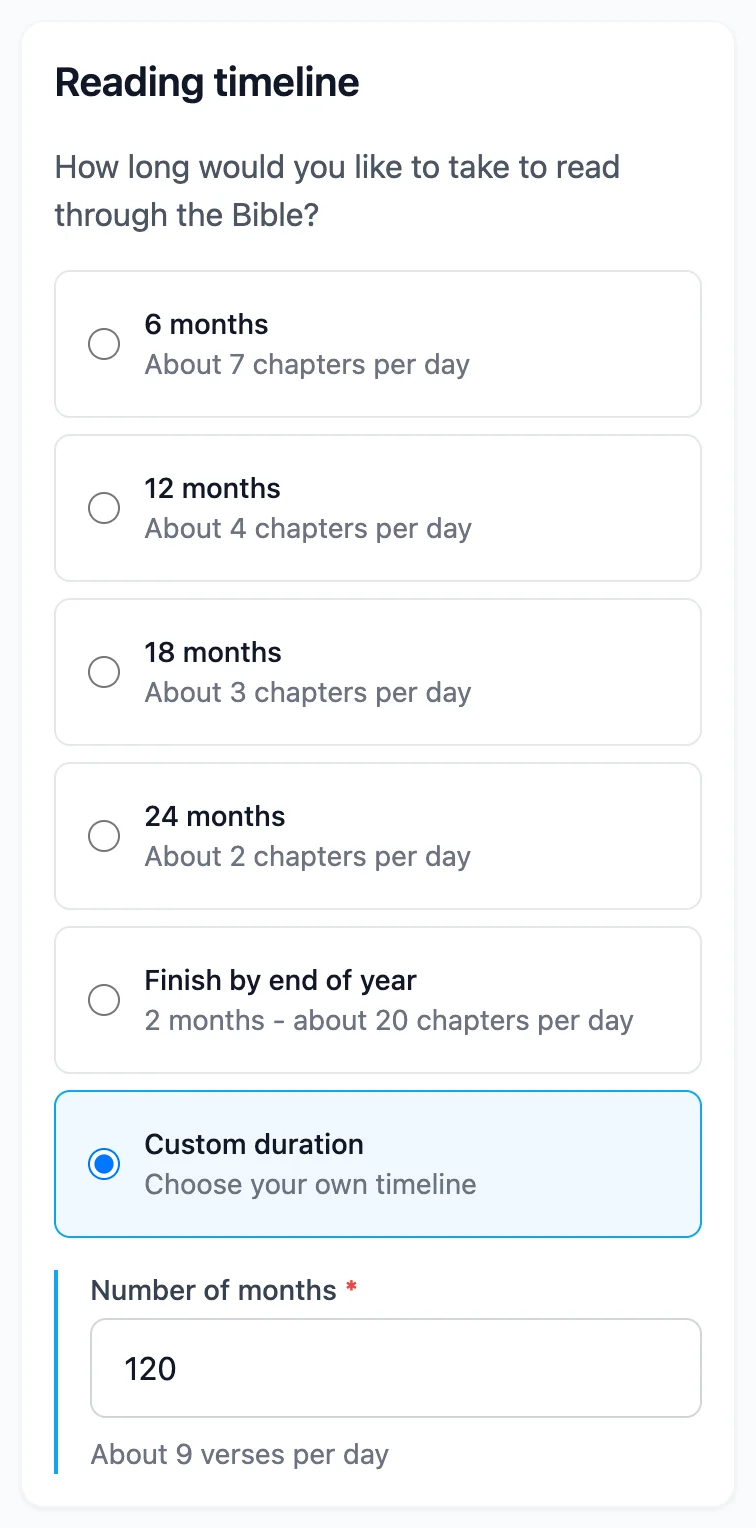
Need more time later? Change plan lets you add up to 3 more years at a time.
Can I change my plan after I make one?
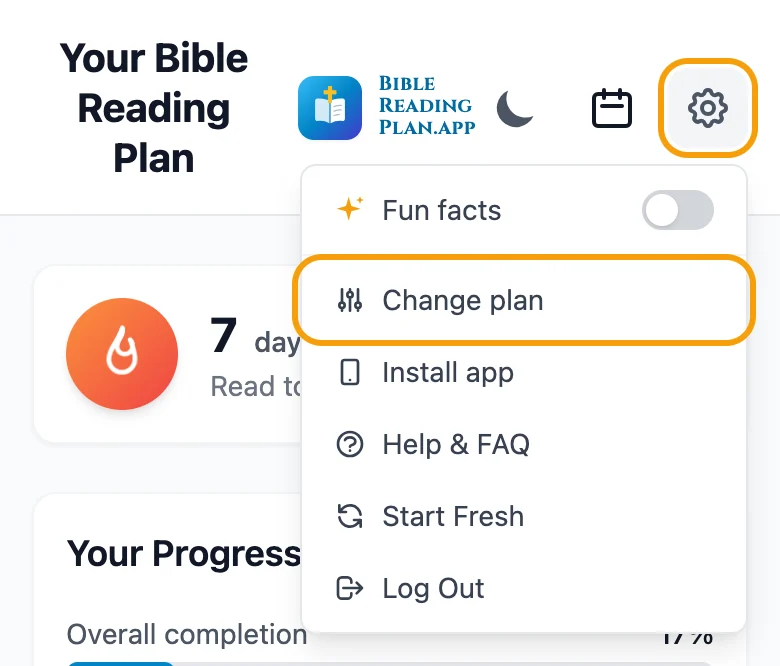
Yes, anytime. On the main screen, tap the gear button at the top, then tap Change plan.
You can switch your Bible translation, give yourself more or less time, include or skip weekends, or read just the Old or New Testament. Before you save, you'll see your new daily reading and finish date.
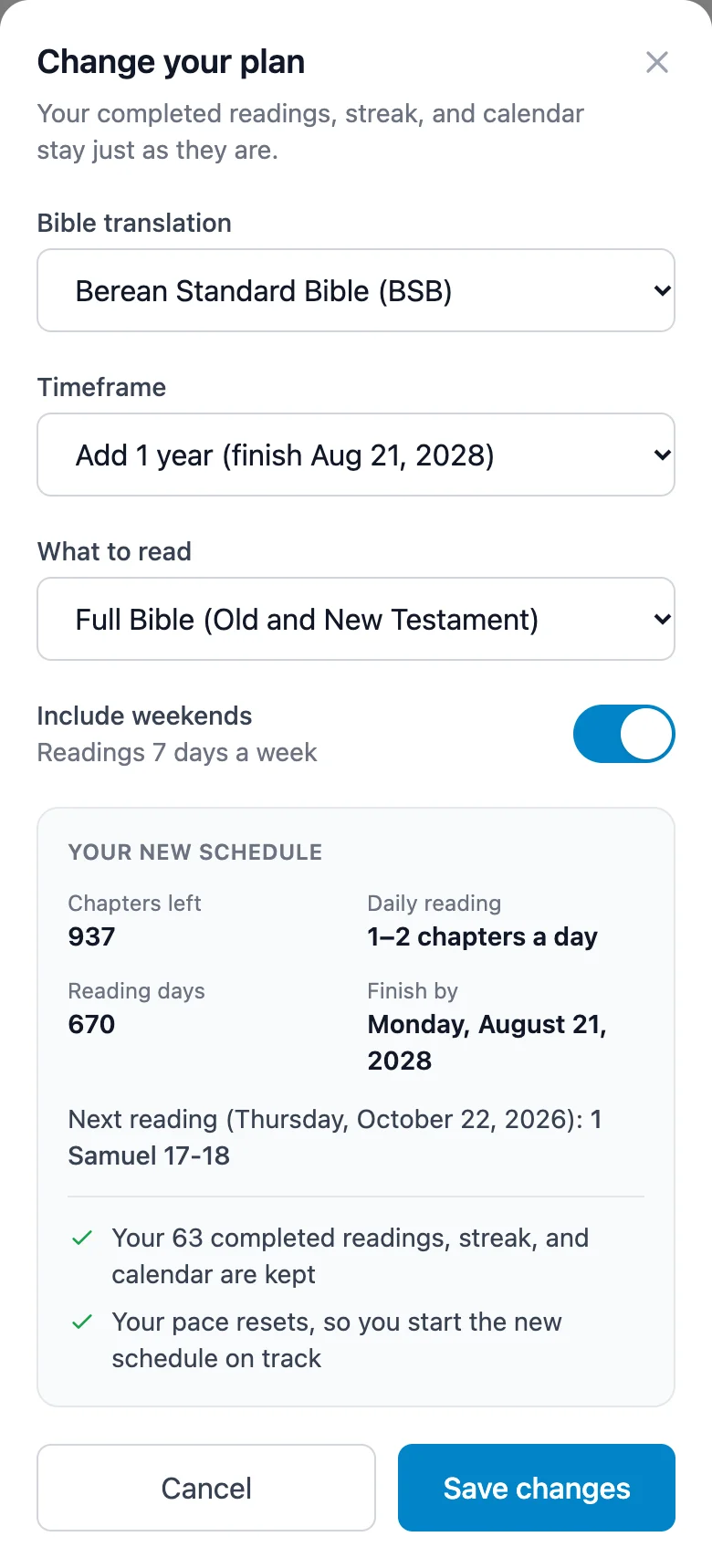
The readings you've already finished, your streak, and your calendar are all kept.
How do I start over?
If you only want a different pace, translation, or timeline, use Change plan instead. It keeps everything you've already read.
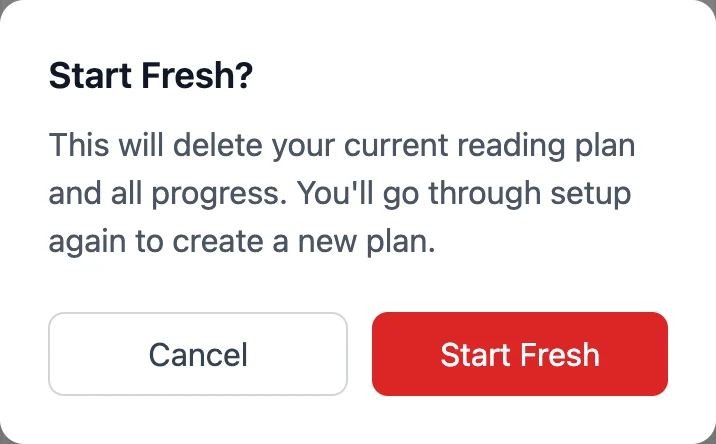
To begin a brand-new plan from the very beginning, tap the gear button at the top of the main screen, then tap Start Fresh.
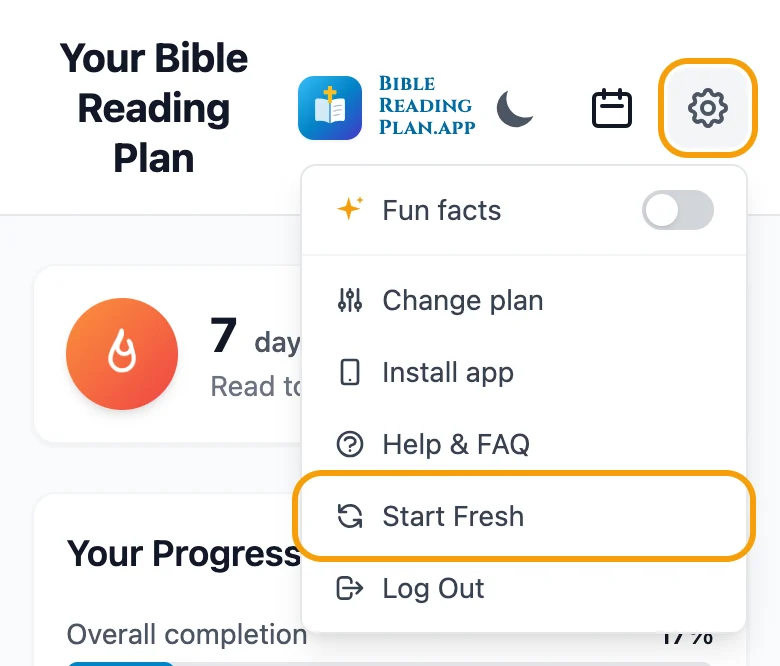
You'll be asked to confirm. Start Fresh deletes your current plan and all your progress, including your streak and calendar, and it can't be undone. Then you'll set up a new plan.
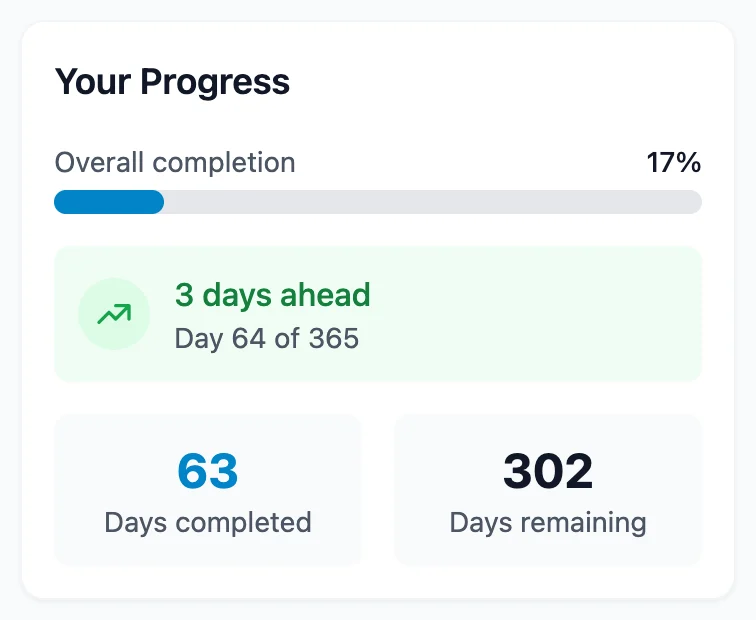
How will I know if I'm ahead or behind?
Look at the Your Progress box on the main screen. It tells you whether you're on track, or how many days ahead or behind you are.
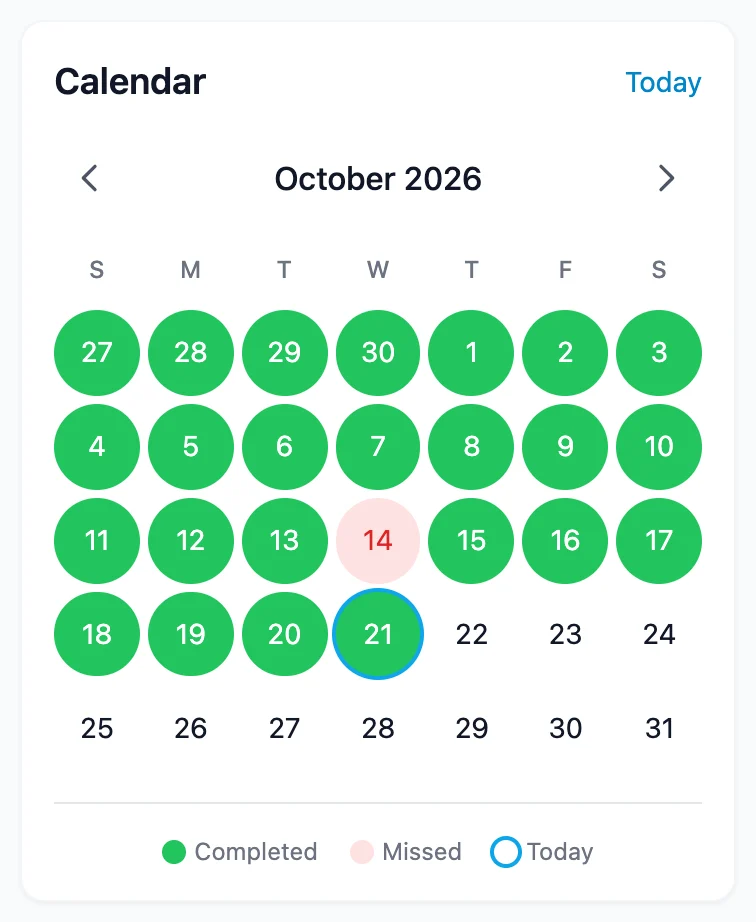
To see each day, tap the calendar button at the top of the main screen. Green days are days you read, and red days are days you missed.
I missed some days. How do I catch up?
Don't worry, nothing gets skipped. Your next reading is always the one right after the last one you finished, and the Your Progress box shows how many days behind you are.
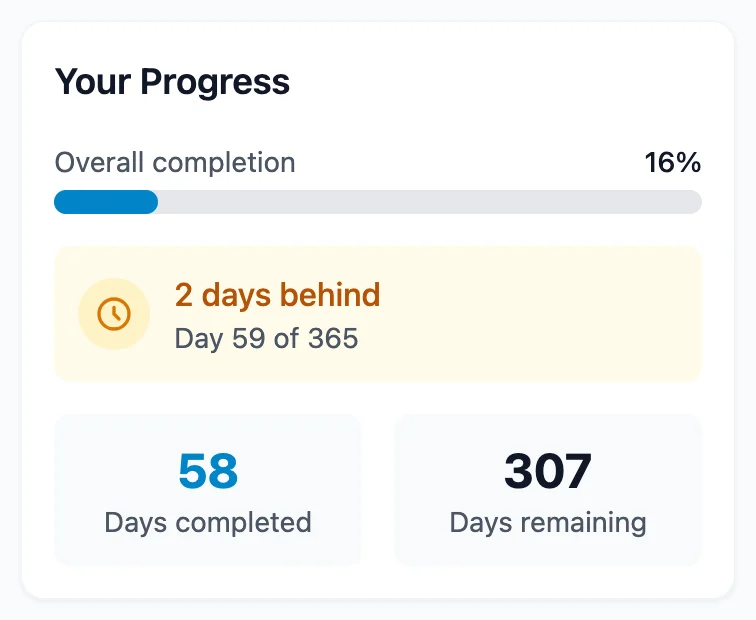
To catch up, read more than one reading in a day. After you tap Mark as Read, the next reading appears right away, so you can keep going.
If you'd rather not double up, use Change plan to give yourself more time. It spreads the rest of your readings out starting today and puts you back on track.
What are the fun facts?
Fun facts are short, true stories about how the passage you're reading shows up in the wider world: songs, movies, art, history, sports, space, and everyday sayings. Each one tells you where the information came from. They're just for fun and don't explain or interpret the Bible.
When a chapter or verse has a fun fact, you'll see a small sparkle button next to it. Tap it to read the fact.
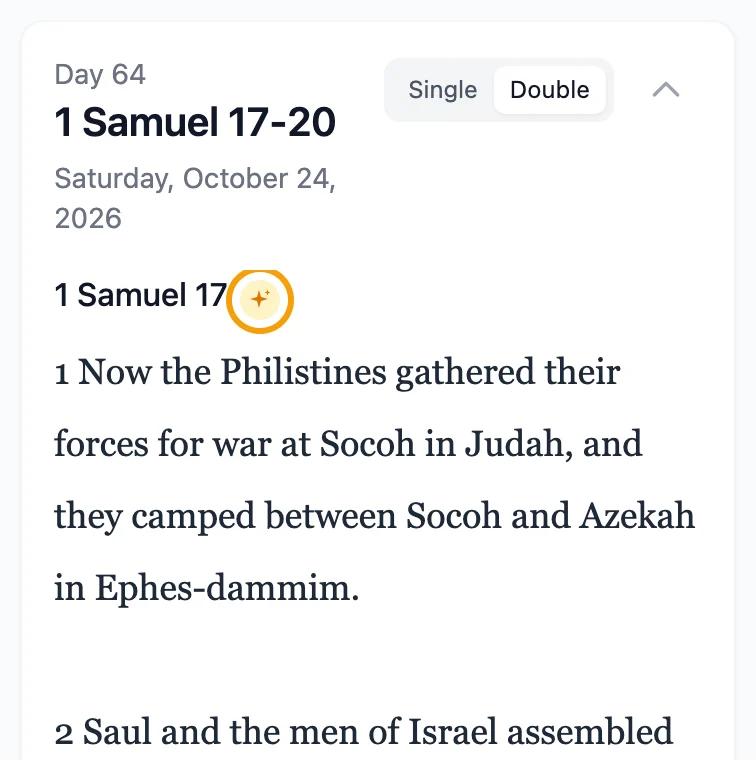
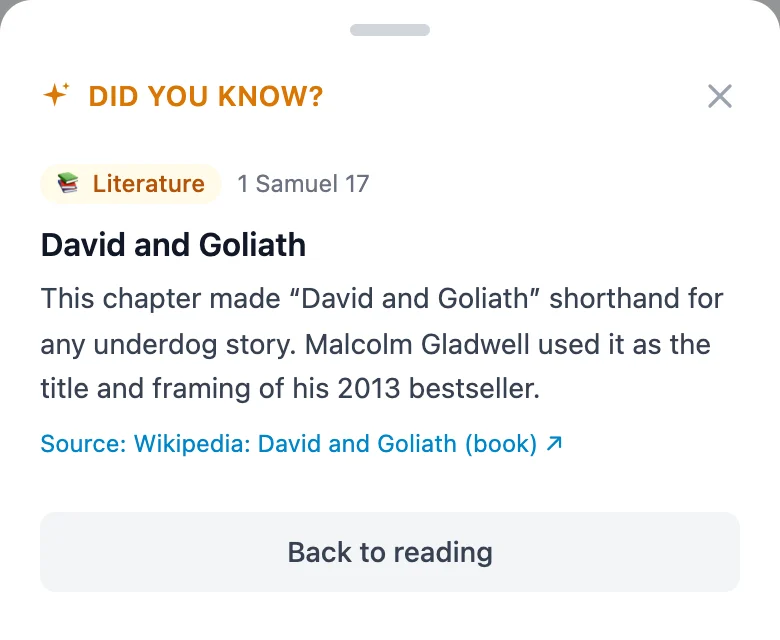
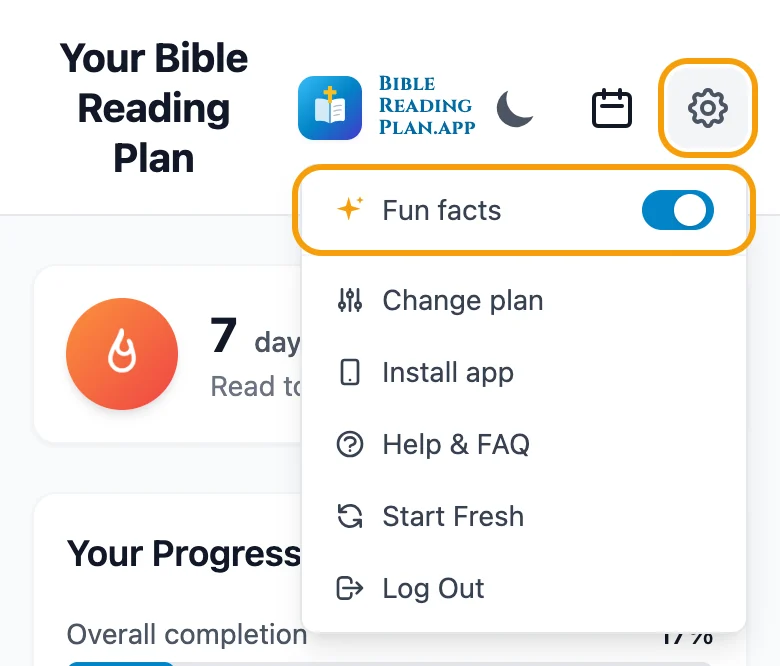
Fun facts never pop up on their own, so they won't interrupt your reading. To turn them on or off, tap the gear button at the top of the main screen, then tap the Fun facts switch.
Can I use it on my phone and my tablet or computer?
Yes. Sign in with the same account on each one. Your plan and progress are saved to your account, so what you read on one shows up on the others.
Sign in the same way you signed up: with your email and password, or with Continue with Google.
If you added Bible Reading Plan to an iPhone or iPad home screen, sign in once inside that app too. It keeps its own sign-in, separate from Safari.
I forgot my password. What do I do?
On the sign-in screen, type your email address in the Email box, then tap Forgot your password? We'll email you a link to set a new password. If it doesn't arrive in a few minutes, check your junk or spam folder.
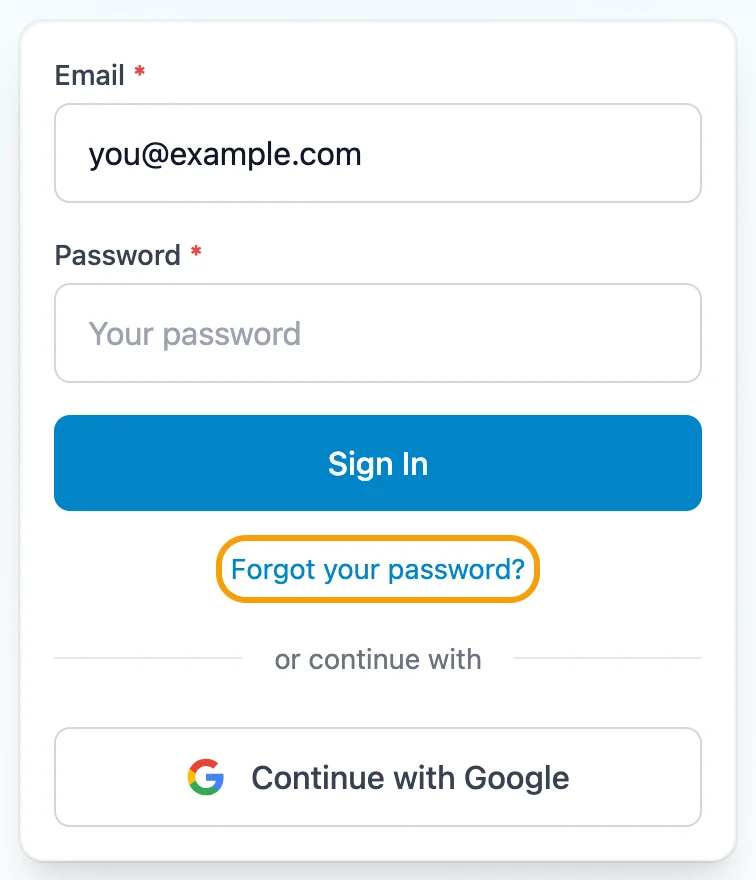
If you signed up with Continue with Google, you don't have a separate password for Bible Reading Plan. Just tap Continue with Google.
Ready to start reading?
Build a plan that fits your schedule. It takes about a minute.
Start Your Free Reading Plan